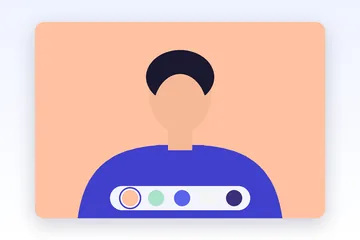
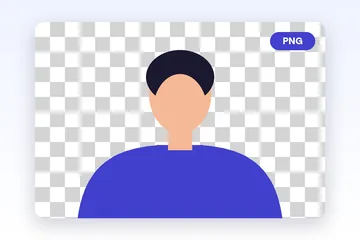
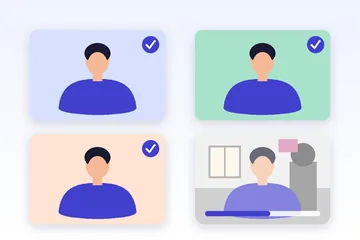
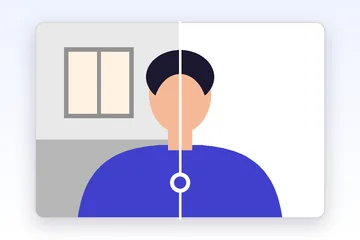
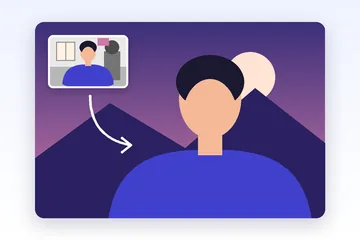
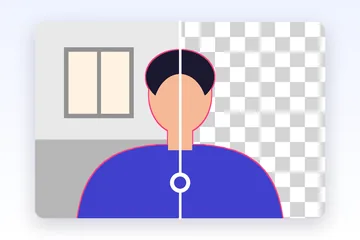
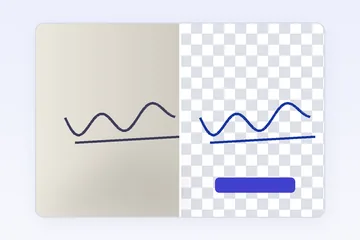
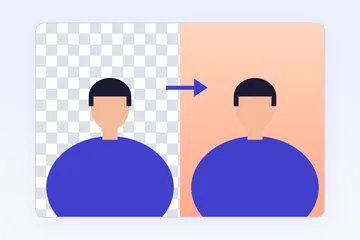
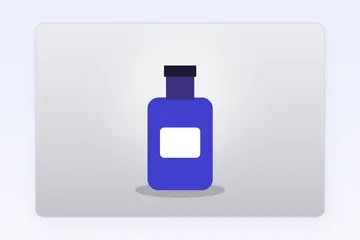

Remove a background automatically, make it transparent, change its color, blur it or put another picture behind it, all inside this browser tab. Drop in a photo to begin, or pick one of the popular tasks below.
Five stages from photo to finished file
The editor walks you through the same five stages each time, and you can jump between them whenever you like. Nothing you change in a later stage throws away work from an earlier one, so trying a different background never means cutting the subject out again.
- Cut out: the editor finds the subject and separates it from everything else. Auto picks between the person and object models for you, and the Erase and Restore brushes are there when an edge needs help.
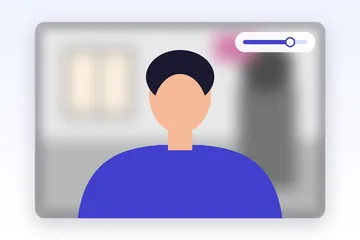
- Background: decide what goes behind the subject, whether that is transparency, a flat color, a gradient, a blurred copy of the original scene or a picture of your own.
- Compose: move, scale, rotate or flip the subject, change the canvas shape and set how much breathing room surrounds it.
- Finish: add a contact shadow, a drop shadow or a reflection, and nudge brightness or warmth so the subject sits naturally in its new setting.
- Export: pick PNG, JPEG or WebP, choose a size, and save the file at the full pixel size of your original on most devices. The export panel shows input and output size side by side, and says so when a phone browser has to cap a very large picture.
What people bring to it
Most photos fall into a handful of familiar jobs. The popular tasks under the drop zone set up the editor for each one, so you start closer to the result you have in mind.
- Products: an item centered on white or a soft studio backdrop, with a shadow underneath so it does not float.
- Portraits: hair-friendly edge settings and backdrops chosen with people in mind.
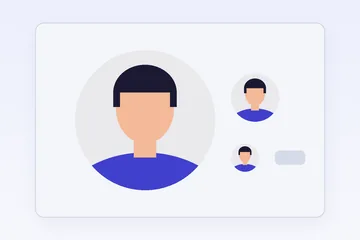
- Profile pictures: head-and-shoulders framing plus a round preview showing how an avatar will be cropped.
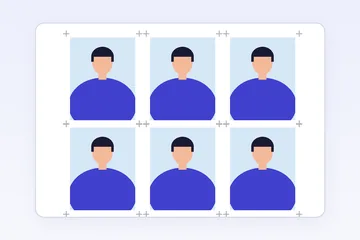
- ID photos: plain light backdrops, document crop sizes and a printable sheet, always checked against the official rules for your document.
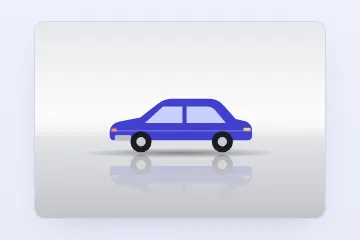
- Cars: the object model and a wide canvas so the whole vehicle fits in the frame.
- Pets: fur is tricky, so the Hair detail control and the On black view help you check whiskers and fluffy outlines.
- Logos and signatures: a color-based removal that needs no model, handy for flat artwork photographed or scanned on paper.
- Social posts: square, portrait and story canvases with gradients and backdrops that hold up in a feed.
Giving a whole folder the same look
Drop several files at once and the editor switches to a queue instead of opening a single photo. Each image is cut out on your device one at a time, so a large batch takes a while but never swamps the tab.
You choose one background treatment and it carries across the set, which is how a catalog ends up with matching backdrops. Anything the editor is unsure about gets marked Needs review; open it, repair its mask with the brushes and return it to the queue. When the run is done, everything downloads together as a single ZIP.
What stays on your computer
The cutout is worked out by a detection model running inside this tab. Your photo, and any background picture you add, are read from your disk into the page and are not sent to a server for processing.
The model has to arrive from somewhere, so your first cutout downloads it once and the browser keeps it in its cache. The person model is 26 MB and the object model 84 MB, and the editor shows you the size before anything is fetched. Nothing downloads until you start a cutout; after your first cutout on this device, later edits begin sooner and can keep working without a connection.
There is no account to create. Your export carries no watermark, and there are no credits to buy or run out of.
Photos that need a second look
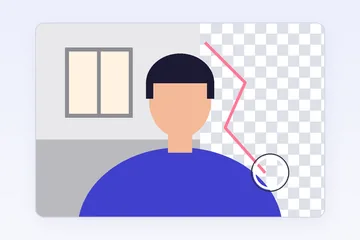
Automatic detection copes well with clear subjects, but some scenes are genuinely hard. Glass and smoke are partly see-through, motion blur smears the boundary, fine hair against a busy background mixes with everything behind it, and a subject the same color as its surroundings gives the model very little to go on. Very dark shots and people overlapping each other can also come out rough. For those, the Mask view and the smart brushes are how you tidy up, and a few careful strokes often make the difference.
Step by step
- Add a photo. Drop an image onto the page, choose one from your files or paste it from the clipboard.
- Let the cutout run. The editor detects the subject. The first time, it fetches the detection model and tells you its size beforehand.
- Pick a background. Keep it transparent, or choose a color, a gradient, a blur or a picture of your own.
- Arrange and finish. Position the subject, set the canvas shape and add a shadow where it helps.
- Export. Choose PNG, JPEG or WebP and a size, then download the file or copy it.
Questions people ask
Do I need to install anything?
No. The editor is a web page. The only extra download is the detection model, fetched the first time you start a cutout and then reused from your browser's cache.
Which file types can I open?
JPG, PNG, WebP, AVIF, GIF (the first frame), BMP, TIFF, and HEIC or HEIF photos from phones. The HEIC decoder loads only when you open one of those files. You can also paste an image from the clipboard.
Will my export be smaller than the original?
Not unless you ask for that. The preview works at a lighter size, but the saved file is built from your original pixels. You can scale it to 75, 50 or 25 percent, or type a custom size.
Can I come back to an edit later?
An unfinished edit is kept in this browser for up to 24 hours so you can resume it, and you can discard it whenever you like. For anything longer, save a .backgroundreplacer project file to your own disk and open it next time.