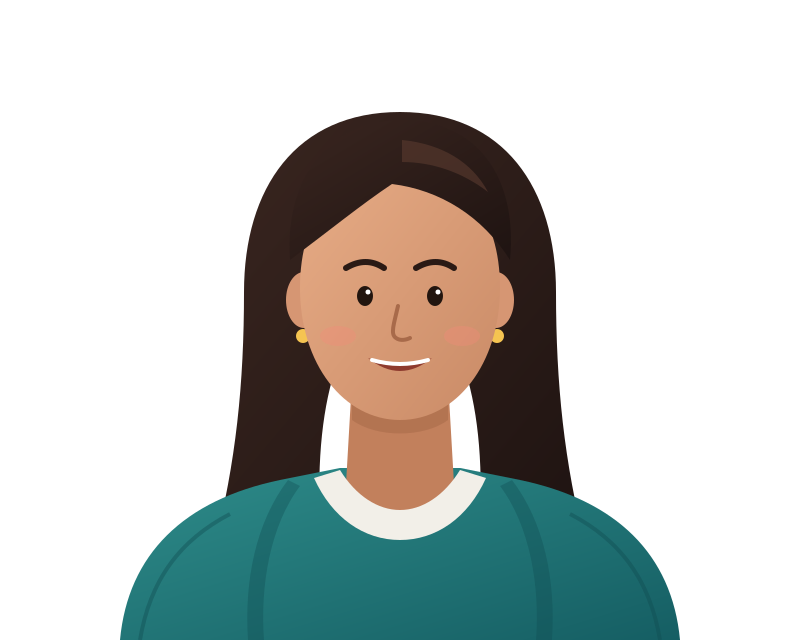
This page uses the person model, offers white, light gray and light blue backdrops, and adds crop sizes with head-position guides. Requirements differ by country and document type, so check the official source before you submit anything.
Check the official requirements first
Photo rules for passports, visas, ID cards and permits are set by each issuing authority, and they differ by country and by document type. They can cover background color, photo size, how large the head must appear, expression, glasses, lighting and sometimes whether the background may be edited at all. Some offices may refuse photos that have been digitally altered. Where possible, take the photo against a plain light wall and use this tool to check framing, size and print — not to change your appearance. It never smooths, slims or relights a face; it changes only the backdrop, the crop and the print layout.
This tool helps you prepare an image; it cannot tell you whether that image will be accepted. Before you print or submit, find the current guidance from the official government source for your document and compare your photo with it point by point.
Backdrops and crop sizes
Three plain backdrops are ready: white, light gray and light blue. Choose whichever your document's guidance names, and if it gives an exact shade, enter it in the HEX field. Crop presets include sizes that come up often:
- 35 × 45 mm, a portrait-shaped size used for many passport and visa photos.
- 2 × 2 in, a common square format.
- 51 × 51 mm, a square size close to 2 × 2 in.
Using the head-position guides
Guide lines mark where the top of the head and the chin should fall, and a center line helps keep the face straight. Scale and move the photo until the head sits within the marks for the size you chose. The guides are a framing aid; your document's own measurements are what count.
Head size is often expressed as a range, for example the distance from chin to crown as a share of the photo's height. If your guidance gives numbers like that, zoom in, compare them against the guides, and adjust the scale in small steps. Tilted heads are a common reason for a retake, so use the center line to keep your eyes level.
Printing a sheet
The printable sheet arranges several copies of your photo on a 4 × 6 in layout, a standard print size at photo counters and on home printers. The sheet file records its print resolution (300 dpi), so print dialogs and photo kiosks know its physical size. Print it at 100 percent scale with any fit-to-page option turned off, then measure the 50 mm ruler bar printed in the margin before you cut along the edges.
Before printing a full sheet, it is worth printing a single test on plain paper and measuring it with a ruler. Printer drivers sometimes add margins or scale pages quietly, and catching that on scrap paper costs less than a sheet of photo paper. If you plan to have the sheet printed at a shop, export it as a full-quality JPEG and ask for it to be printed at actual size.
Starting from a usable photo
Editing cannot fix everything. Even lighting across the face, a neutral expression, open eyes and a clear view of the face where required all have to come from the original picture. Stand facing the camera in front of a plain wall in soft daylight and avoid shadows behind your head. Flyaway hair against a busy background is the hardest part to cut out, so a plain wall helps the cutout too.
Step by step
- Read the official requirements. Find the current photo rules for your country and document from the official source.
- Open your photo. Add a front-facing picture taken against a plain wall.
- Choose the backdrop. Pick white, light gray or light blue, or type the exact shade required.
- Crop and align. Select a size preset and line up your head with the guides.
- Export or print. Save the single photo, or make a 4 × 6 in sheet and print it at actual size.
Questions people ask
Will this photo be accepted for my passport?
We cannot say. Only the issuing authority decides. Check its current photo rules, including whether edited backgrounds are allowed, before you submit. Some forms now require the photo to be captured live in their own portal or app; for those, an edited file will not be accepted at all.
Which background color should I pick?
The one your document's official guidance names. Different countries and documents ask for different colors.
How do I make sure the printed size is right?
The sheet and the single photo both record 300 dpi in the file, so they open at their physical size. Print at actual size with scaling turned off, then measure the bar marked Measure this: 50 mm in the sheet margin. If it is not 50 mm, your printer scaled the page.
Is my ID photo sent anywhere?
No. It is processed in this tab and stays on your device, which matters for a picture of your face intended for an identity document.