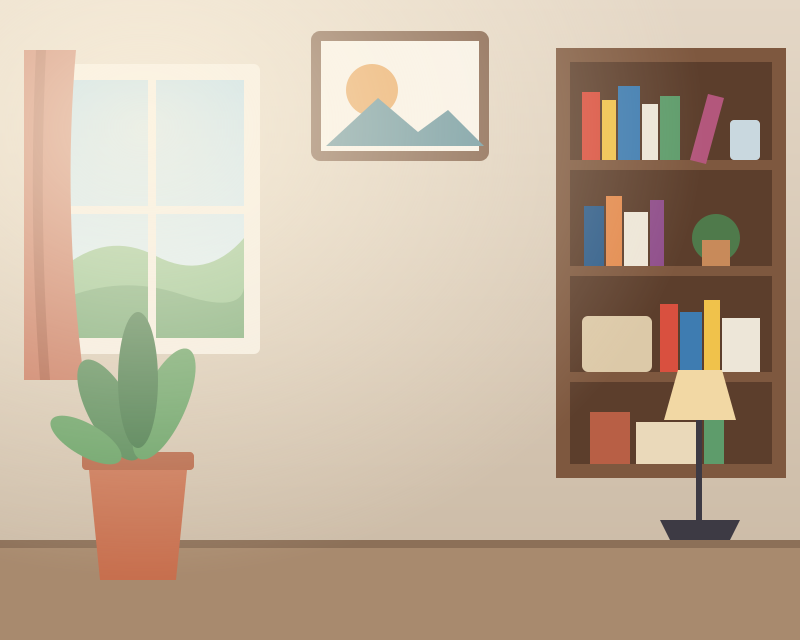

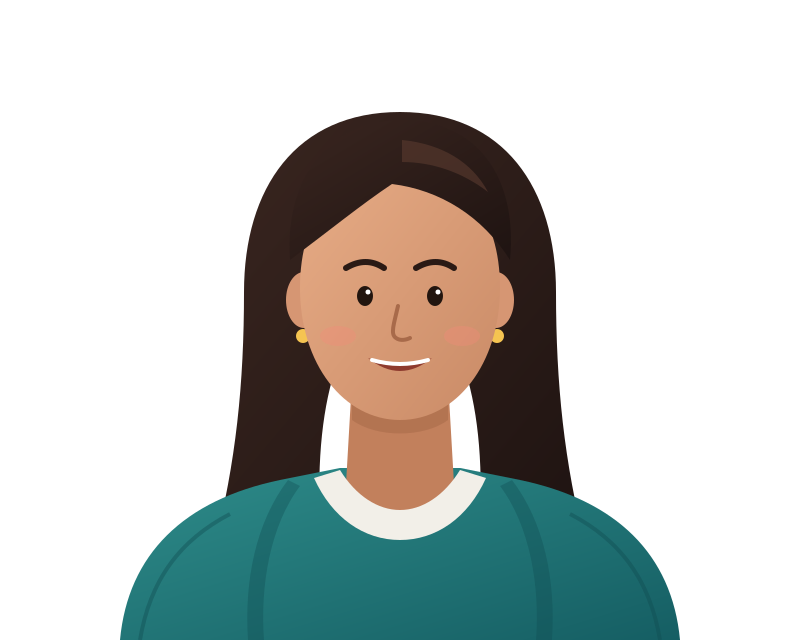
This page uses the person model, centers your head and shoulders and shows a round overlay so you can see how the picture will look as an avatar. Pick a calm backdrop and export at a common profile size.
Framing for an avatar
Profile pictures are usually seen small, often no bigger than a thumbnail beside your name. When the small face finder spots a face, the editor centers your head and shoulders from it so your face takes a sensible share of the frame, with room above the head so a round crop does not slice through it. If no face is found, it frames from the top of the cut-out subject instead, and you can adjust the position in Compose.
The circular overlay is a preview only. Most platforms cut the circle themselves, so the file stays square with your backdrop filling the corners, unless you export it transparent.
A good source photo makes this easier. Face a window rather than having it behind you, hold the camera at eye level or slightly above, and leave some space around your head and shoulders so the framing has room to work. A photo that is cropped tightly at the top of the head leaves nothing to center.
Backdrops that suit a profile
Whatever you choose, keep it quieter than your face and clothing. Busy scenes break up into noise at thumbnail size.
- Neutral tones such as soft grays, beiges and muted blues keep attention on you and work in formal and casual settings alike.
- Office blur suggests a workspace behind you without showing anything specific.
- Gradients add a touch of color and stay tidy when shrunk.
Sizes and formats
Common profile sizes are listed in Export, as square options that cover typical avatar slots. Saving larger than a platform displays is fine, since most sites resize what you give them, though a very large file can be slow to send from a phone. JPEG suits a solid or blurred backdrop; PNG or WebP keeps clear corners if you went transparent.
Copy to clipboard, where your browser allows it, is handy for pasting into a chat app's settings or an email signature.
Hair and glasses
Hair is the part people notice. Check the result On white and On black, turn up Hair detail for loose strands, and use the smart Restore brush to bring back any curls detection trimmed.
The space inside glasses frames sometimes keeps a patch of the old background. Mask view shows it clearly, and a few strokes of Erase or Restore make it match the rest of the backdrop.
Light and color on your face
If a new backdrop makes your skin look gray or too orange, use the subject's brightness and warmth sliders in Finish. Pairing tones with your lighting, warm with warm and cool with cool, reads more naturally than a sharp clash.
It also helps to think about where the picture appears. A profile on a dark-mode app sits against near-black, while an email signature usually sits on white. A backdrop with a little color in it stands out in both, whereas pure white can disappear into a white page and pure black into a dark one. Try the round preview against each in your head before you settle on a shade.
Step by step
- Open a photo of yourself. A picture with your face clearly visible gives the cleanest cutout.
- Let the person model cut you out. Your head and shoulders are separated and centered.
- Check the round preview. Make sure the circle overlay does not clip your head or chin.
- Choose a backdrop. Try a neutral, an office blur or a gradient.
- Export at a profile size. Pick one of the listed square sizes and download or copy the file.
Questions people ask
Will the downloaded picture be round?
The circle is a preview. Your file stays square, which is what most profile uploads expect, and the site draws its own round crop.
Which size should I export?
Use one of the listed profile sizes, or the original size; most platforms scale uploads down on their end.
Can I use a photo with other people in it?
Yes, but overlapping people are hard to separate. Frame yourself closely in Compose and use the Erase brush to clear anyone the model kept.
How do I get an office look behind me?
Choose an office-blur backdrop from the Portrait presets, or upload a photo of your own workspace and blur it.